As a UI/UX designer, your creative journey can be full of twists and turns. You need a tool that helps you navigate all the stages, from ideation to prototyping. This is where Figma comes in. Think of it as the platform that transforms a complex design process into a streamlined workflow. With features like real-time collaboration, reusable components, and responsive design tools, Figma simplifies the entire process. Figma not only makes your job easier but also enhances collaboration, keeping you and your team in sync. So, if you haven’t already, it’s time to see why UI/UX design with Figma is essential for every designer.
What is Figma?
Credit: designshack.net
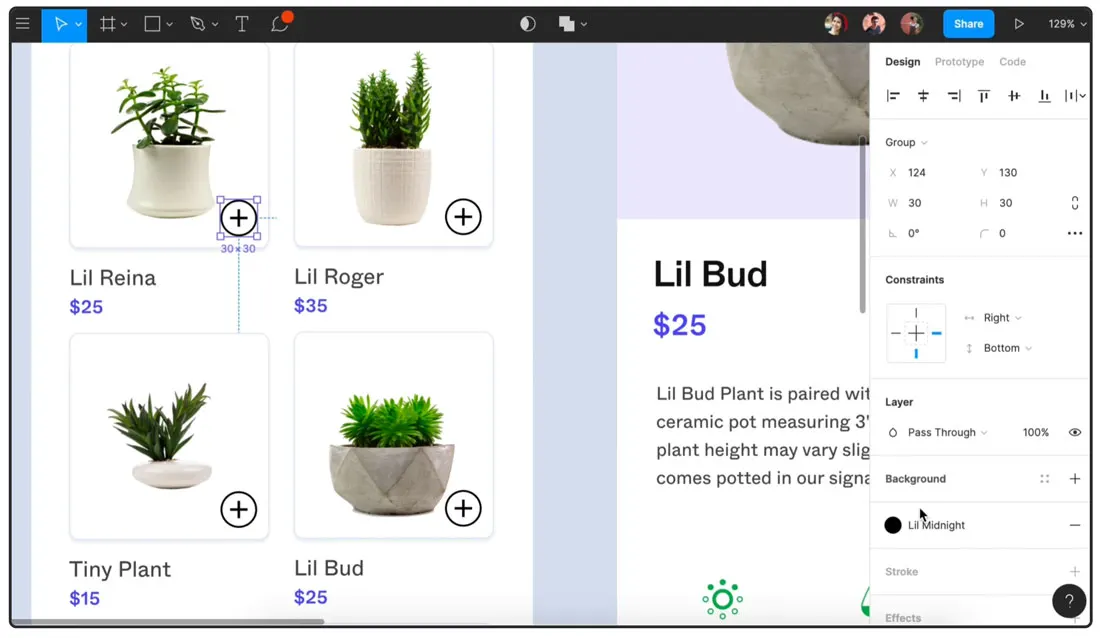
In simple words, Figma is a cloud-based UI/UX design tool that allows designers, developers, and graphic designers to create, collaborate, and prototype in real time. It’s known for its intuitive interface and powerful features that make the design process smoother. Whether you’re working on UI or UX, Figma offers a wide array of tools to bring your ideas to life.
Plus, since it’s browser-based, you can access your projects from anywhere, making it ideal for product designers and teams working across different locations.
- Cloud-Based: Work from anywhere with your design stored online.
- Real-Time Collaboration: Multiple people can work on the same file simultaneously.
- Prototyping and Handoff: Easily create interactive prototypes and collaborate with developers.
How is Figma Used for UI/UX Design?
Figma is ideal for both UI (user interface) and UX (user experience) design. It’s a one-stop shop for everything from wireframing to high-fidelity designs, with a range of features that make it easier to move between the two. You can create user flows, interactive prototypes, and UI elements all in one place.
- UI Design: Build sleek, user-friendly interfaces with Figma’s design tools.
- UX Design: Map out user journeys and interactive prototypes to improve the user experience.
Need a hand bringing your UI/UX project to life? Check out our UI/UX design services, and let’s create something amazing together.
The Design Process in Figma
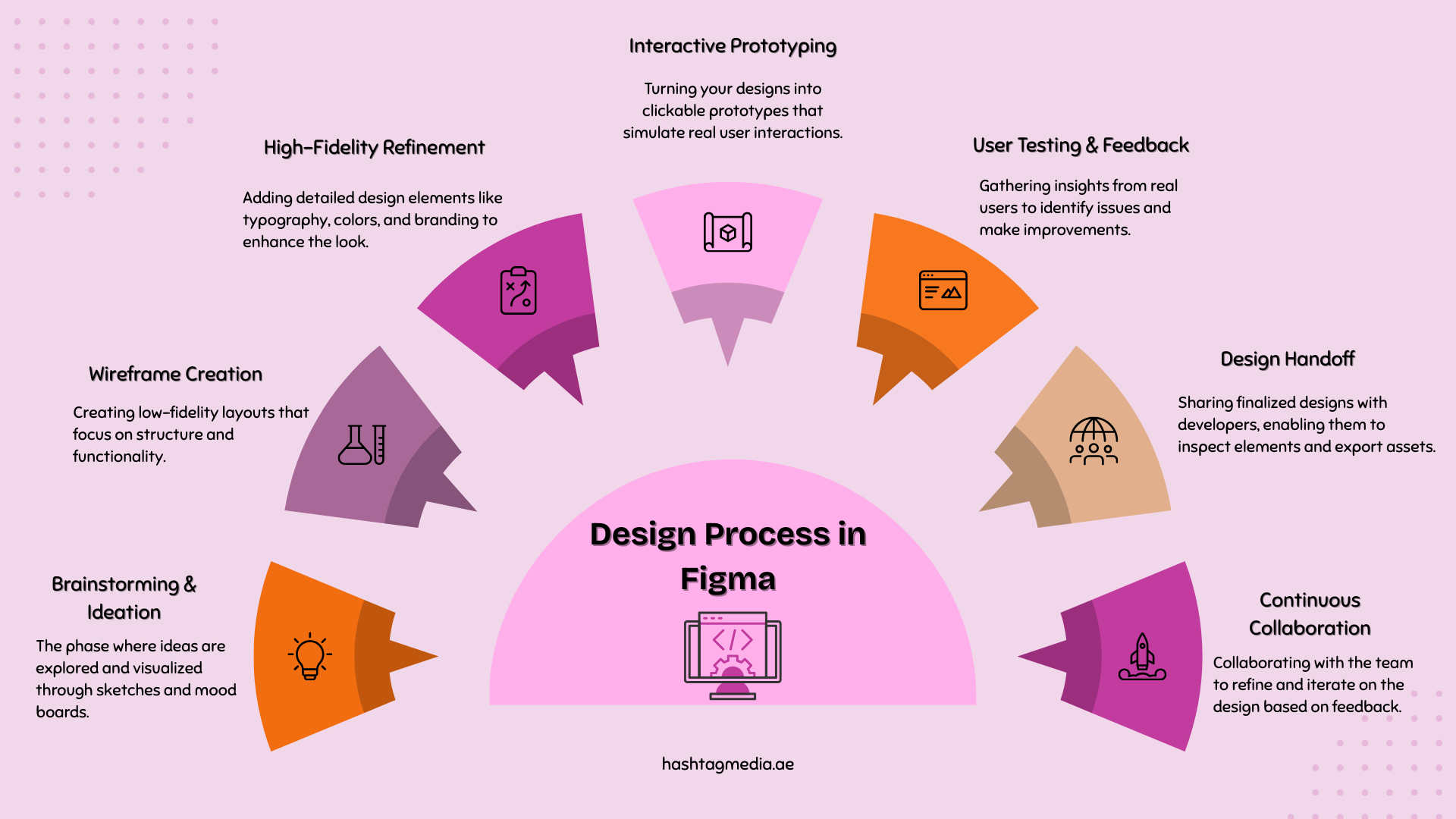
The design process in Figma is simple and fluid. It starts with brainstorming and sketching ideas, moves to wireframing, and then to high-fidelity designs and prototyping. Finally, you hand off your designs to developers for implementation.
- Idea Generation: Start with brainstorming and sketches.
- Wireframing & Prototyping: Create low-fidelity wireframes and interactive prototypes.
- Collaboration: Get feedback and iterate on designs in real time.
Let’s now get into the whole process in detail.
Ideation and Research
In this first phase, the goal is to understand your users’ needs and set the foundation for the design. You can create mood boards or conduct user research to gather insights.
- User Research: Get feedback from real users to inform your design choices.
- Competitor Analysis: Check out your competitors’ designs to understand market trends.
Wireframing
Credit: figma.com
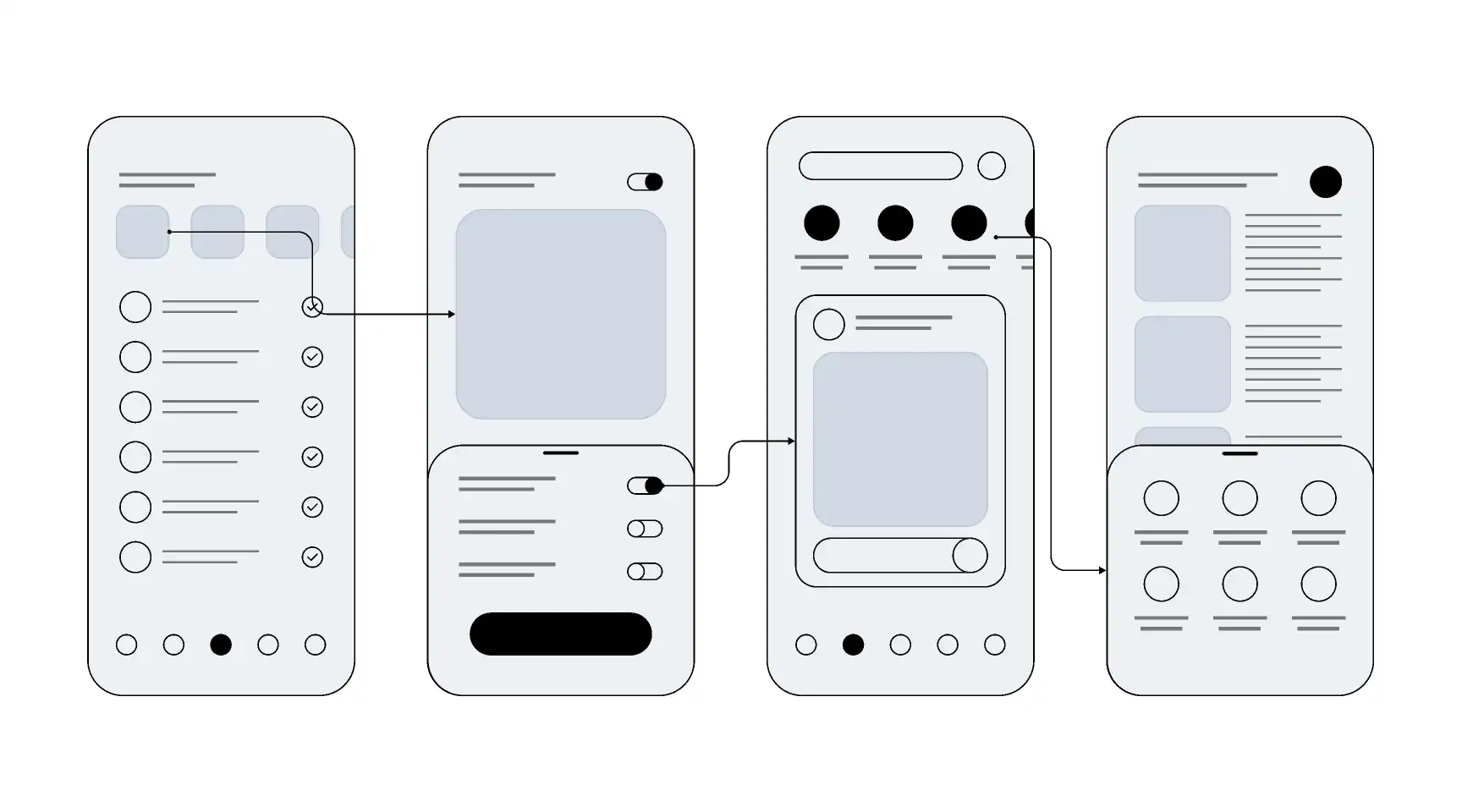
Next comes wireframing. It is the blueprint of your design. Here, you focus on layout and functionality, rather than fine details. Figma’s vector tools are perfect for building wireframes that scale easily.
- Low-Fidelity Design: Focus on layout, not visual details.
- Responsive Design: Ensure your wireframes work on different screen sizes.
High-Fidelity Design
This is where you refine the visual elements and add branding elements, typography, and color schemes. You can use Figma’s UI/UX templates and components to keep consistency across your screens. The high-fidelity designs should reflect the final product’s look and feel.
- Components: Reuse design elements like buttons and icons to save time.
- Consistency: Ensure your UI elements align with your brand style.
Prototyping
Credit: figma.com
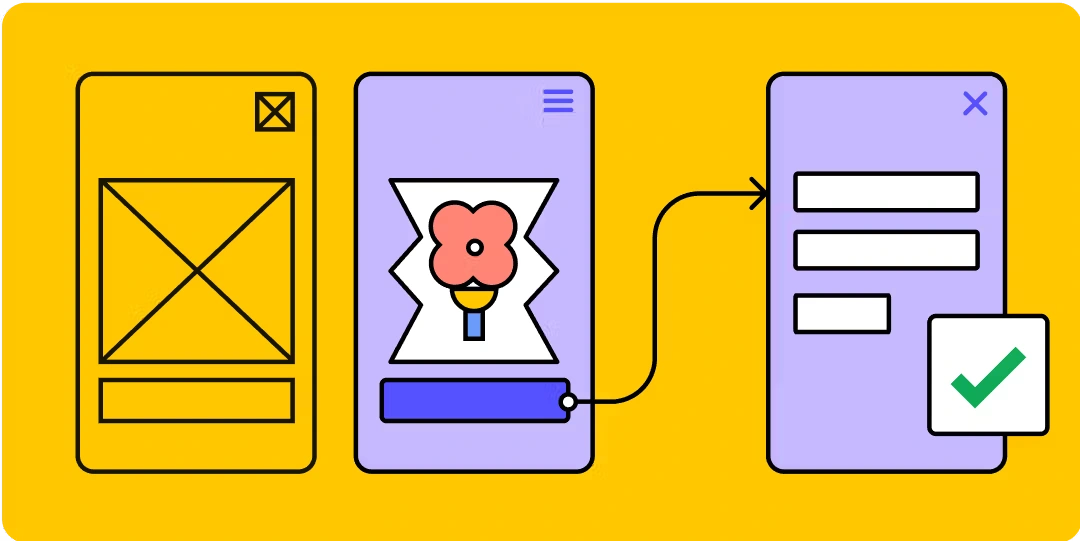
Figma allows you to turn your designs into interactive prototypes. You can create clickable, functional prototypes that simulate real user interactions, helping you visualize the user journey. This feature is great for product designers who want to showcase their designs to stakeholders or clients.
- Interactive Prototypes: Create links between screens for a seamless experience.
- Microinteractions: Add small animations to enhance user experience.
User Testing and Iteration
Before the final launch, it’s essential to test your design with real users. Gather feedback, analyze user behavior, and make adjustments to improve the design.
- Usability Testing: Test your prototypes with actual users to identify issues.
- Iterate: Make quick adjustments based on feedback.
Design Handoff to Developers
Credit: depalma.io
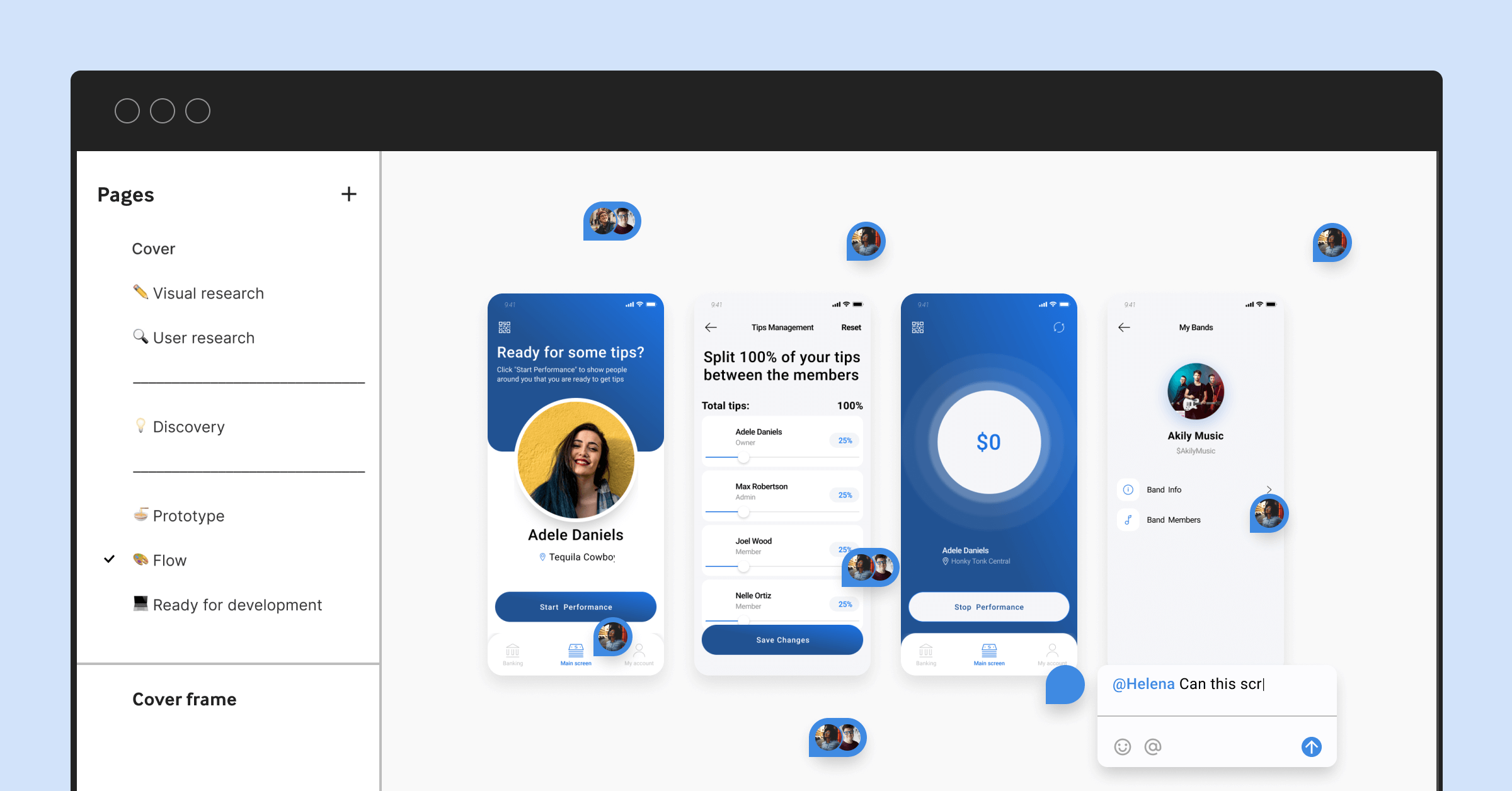
Once your design is finalized, it’s time to pass it on to the development team. Figma’s collaboration tools make this process easier, with developers being able to inspect elements, check styles, and export assets directly.
- Developer Access: Developers can inspect your designs and get the necessary code.
- Asset Export: Export images, icons, and other design elements directly from Figma.
Tips for Streamlining Your Figma Workflow

Credit: andacademy.com
You’ve got the design process down, but a few extra tips could take your work to the next level. Let’s look at some practical advice that will help you streamline your workflow even further.
Utilize Components and Styles
Creating reusable components will save you time and maintain consistency throughout your design. Use Figma’s style system for colors, text, and effects to ensure uniformity across your project. This is especially useful when working with UI/UX templates in Figma.
- Create Components: Reusable buttons, icons, and other elements.
- Use Shared Styles: Apply consistent colors and text across all your designs.
Leverage Auto Layout
Figma’s Auto Layout feature helps you design responsive interfaces effortlessly. It automatically adjusts elements based on their content and screen size, which is perfect for flexible layouts.
- Auto-Resize Elements: Elements resize automatically based on their content.
- Responsive Design: Ensures your designs adapt to different screen sizes.
Use Plugins to Boost Productivity
Figma has an extensive library of plugins that help speed up tasks like icon placement, creating Lorem Ipsum text, and even generating color palettes.
- Icon Plugins: Use plugins like “Feather” for free icons.
- Text Plugins: Use “Content Reel” to generate placeholder text quickly.
Stay Organized with Layers and Pages
Keep your Figma file clean and easy to navigate. Use layers and pages effectively to organize your design files, making it easier for you and your team to collaborate.
- Layer Organization: Name your layers and group similar elements.
- Separate Pages: Use different pages for wireframes, high-fidelity designs, and prototypes.
Take Advantage of Version Control
Figma’s version control system allows you to track changes and revert to previous versions of your design. This helps you avoid making irreversible mistakes and ensures you’re always working on the most up-to-date file.
- Version History: Track changes and revert if needed.
- Commenting: Use comments to leave feedback or explain changes.
Wrapping It Up
So, we have learned that Figma is a powerful tool that can help streamline your entire UI/UX design with Figma. No matter if you’re working solo or as part of a team, Figma’s collaborative features, components, and prototyping tools make it easier to create user-friendly, visually appealing designs.
Frequently Asked Questions
Here’s what you need to know about UI/UX design with Figma.
What is Figma used for?
Figma is used for designing, prototyping, and collaborating on UI/UX projects, offering real-time updates and sharing.
Is Figma suitable for beginners?
Yes, Figma is beginner-friendly with an easy-to-learn interface and plenty of tutorials to help you get started.
Can I use Figma for wireframing?
Definitely! Figma is perfect for wireframing, offering tools to quickly sketch and structure your UI/UX layout.
Does Figma work for mobile app design?
Yes, Figma is great for mobile app design. You can create responsive designs for various screen sizes and resolutions.
How do I share my Figma design with a team?
Figma allows you to share files with teammates through links, enabling real-time collaboration and feedback.